Jump to Product:
Second Opinion
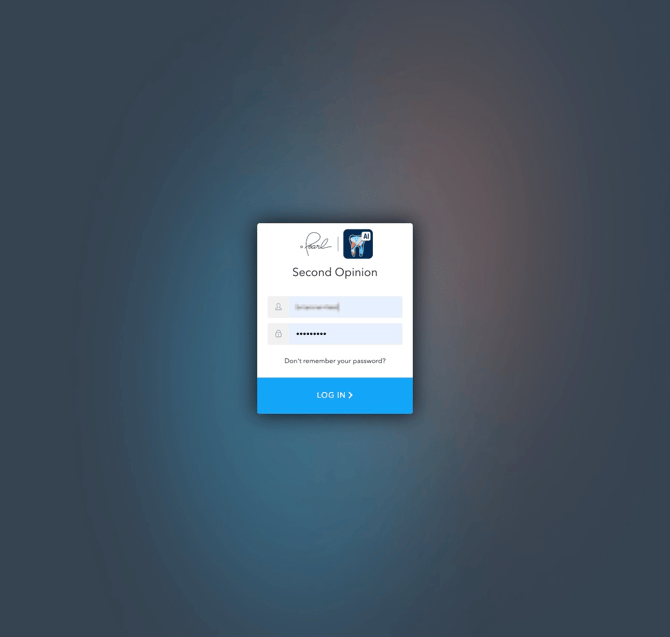
Step 1: Navigate to secondopinion.hellopearl.com
Open your web browser and navigate to the Second Opinion login page.
Step 2: Enter your Pearl Login Credentials and click "Log In"
Enter your username and password, then click the blue "LOG IN" button to access your Pearl account.
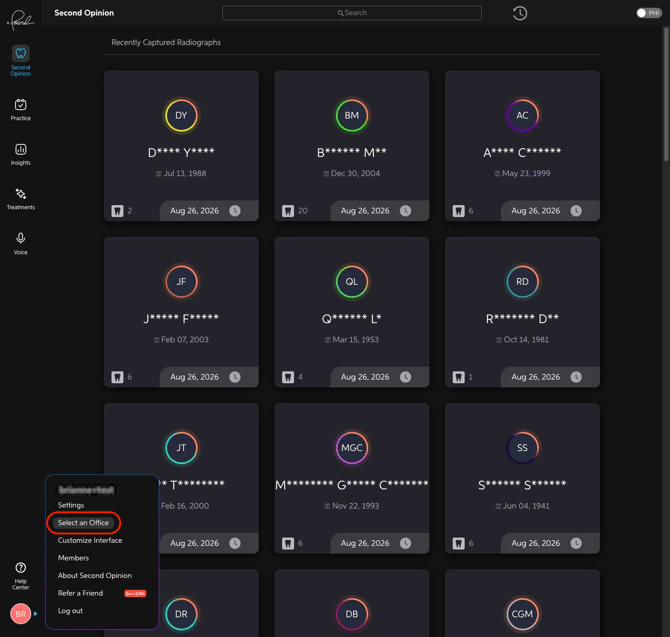
Step 3: Hover over your initials in the lower left corner and click "Select an Office"
In the lower left corner of the Pearl Portal, you'll see your initials. Hover over them to reveal a menu and select "Select an Office" to view available office profiles.
Step 4: Select an organization and office
Select an organization to view. If the organization has multiple offices, select the appropriate office from the "Office" menu.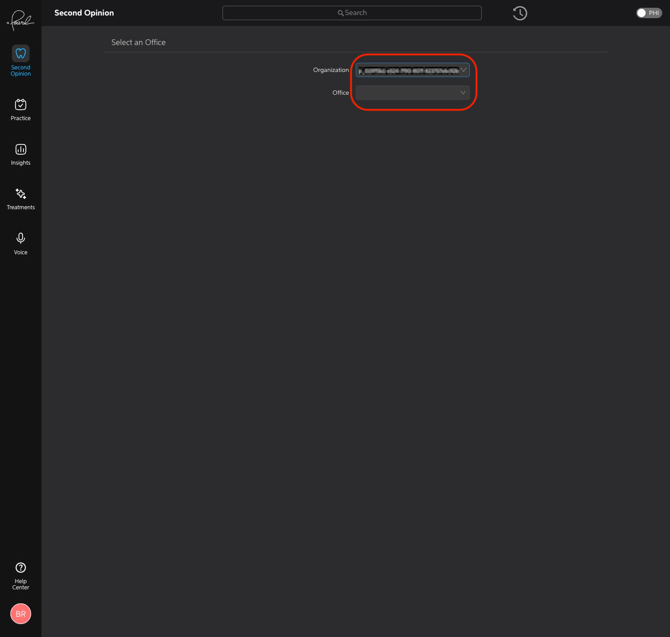
Step 5: Click the "Clock" icon
Click the clock icon (located in the top right area) to confirm your selection and load the office data.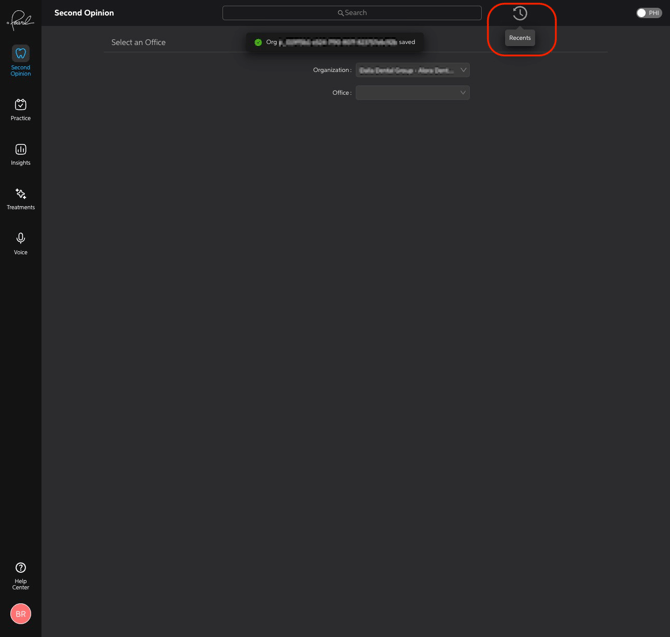
Step 6: View another office
Repeat the steps above to view another office profile. You can switch between offices as needed.
Practice Intelligence
Step 1: View Practice Intelligence, Insights, or Treatments
To view Practice Intelligence, navigate to pi.hellopearl.com or click on any menu items under "Practice," "Insights," or "Treatments."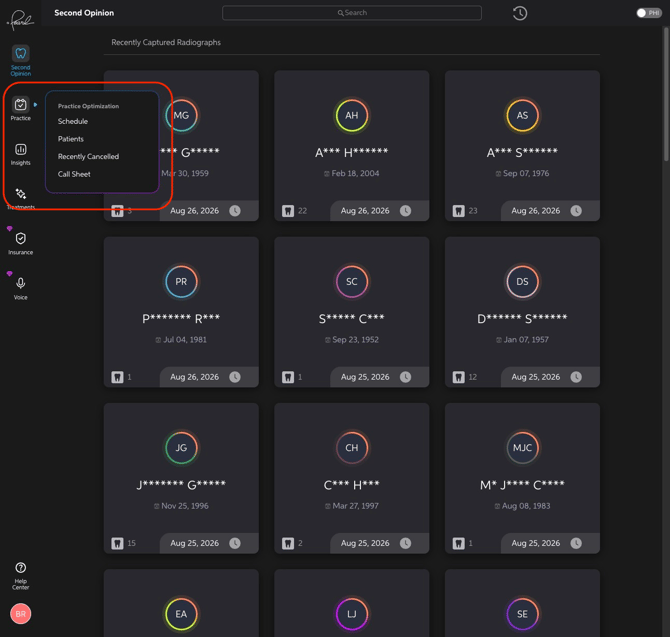
Step 2: Navigate the Practice Schedule
If you've clicked on "Practice" or "Schedule" under the Practice menu, you will see the office for which you are viewing. If there are multiple practices within the organization, use the dropdown menu to toggle between practices.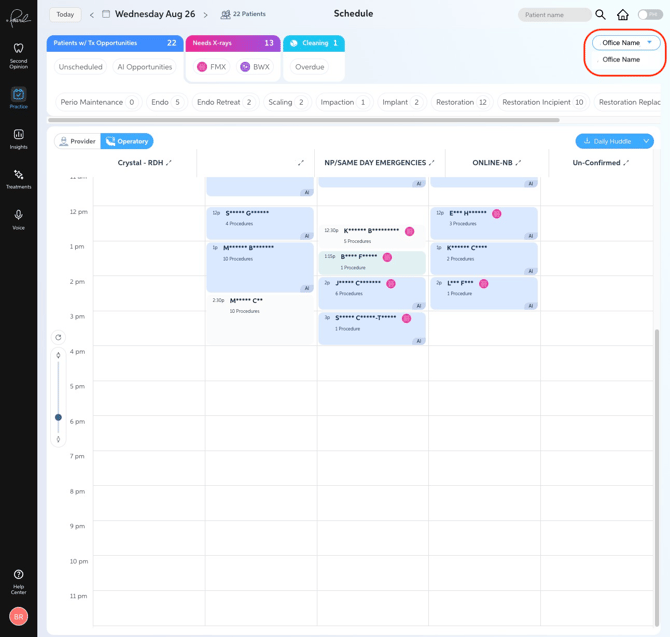
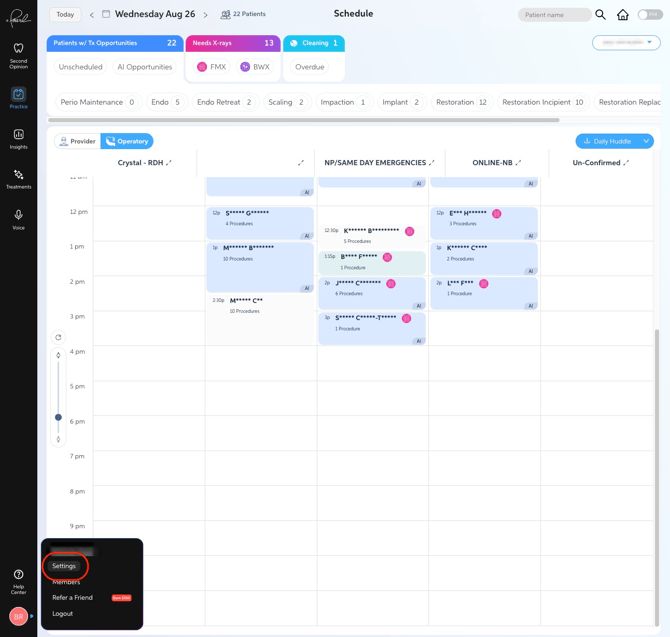
Step 3: View another organization
To view another organization, hover over your initials in the lower left corner of the Portal and click "Settings."
Step 4: Select an organization from the dropdown
In the Settings page, use the dropdown menu under "Organization" to select a different organization.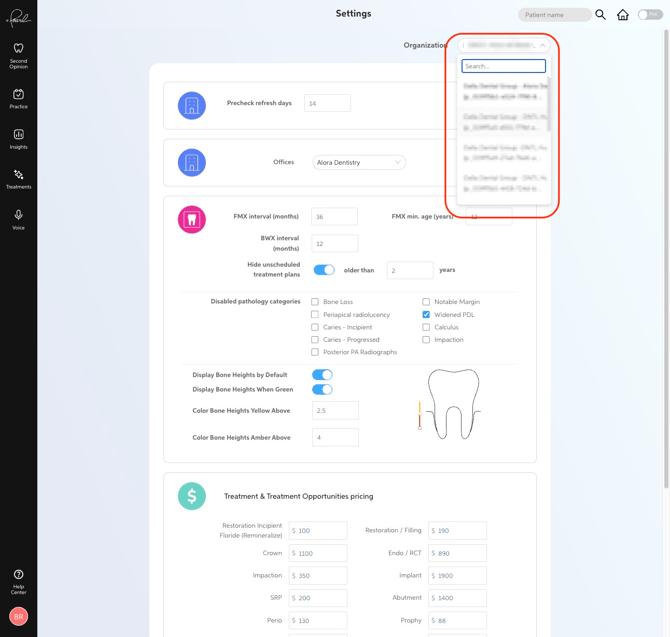
Step 5: Click on "Practice" to view the Schedule
After selecting a new organization, click on "Practice" from the navigation menu to view the schedule for that organization.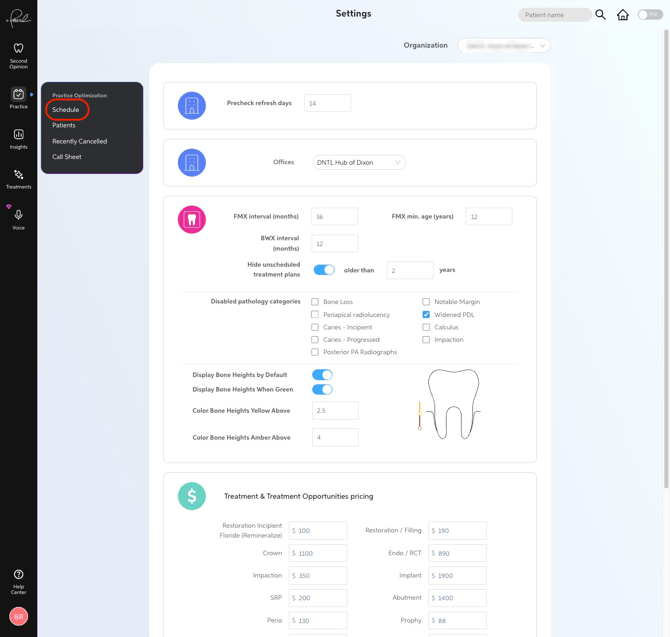
Step 6: View the Insights Dashboard
Click on "Insights" to view the Insights Dashboard for the selected organization.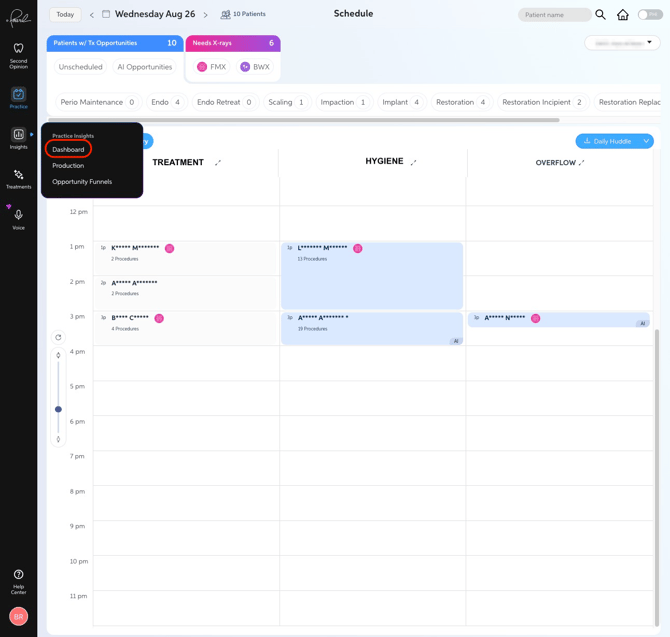
Step 7: Toggle between organizations
Repeat steps 3 and 4 to toggle between organizations. You can switch between different organizations and their associated practices as needed.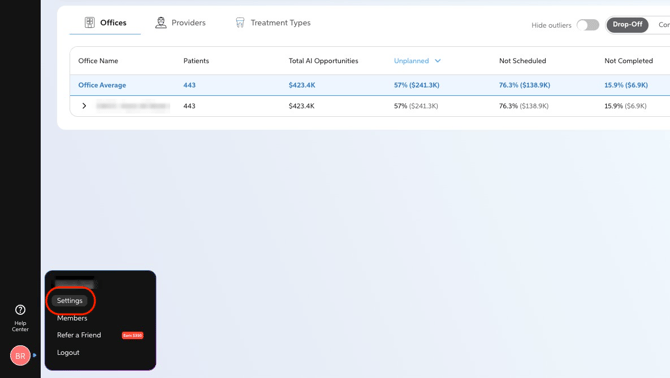
Precheck
Step 1: Access Precheck
To view Precheck, navigate to insurance.hellopearl.com or click on "Insurance" from the navigation menu.
-png.png?width=670&height=377&name=Screenshot%202026-08-27%20at%2012-32-21%E2%80%AFPM%20(2)-png.png)
Step 2: Toggle between Precheck practices
Use the dropdown menu to toggle between practices that have a Pearl Insurance subscription.
-png.png?width=670&height=377&name=Screenshot%202026-08-27%20at%2012-32-26%E2%80%AFPM%20(2)-png.png)
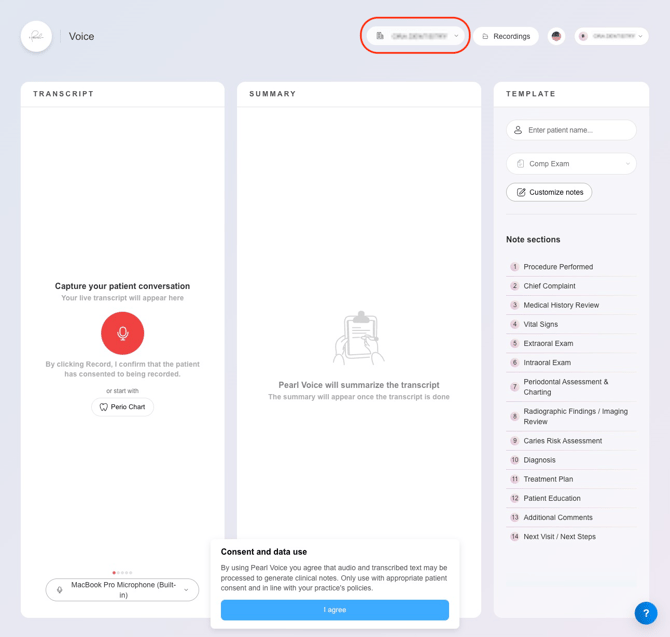
Pearl Voice
Step 1: Access Pearl Voice
To view Pearl Voice, navigate to voice.hellopearl.com or click on "Voice" from the navigation menu.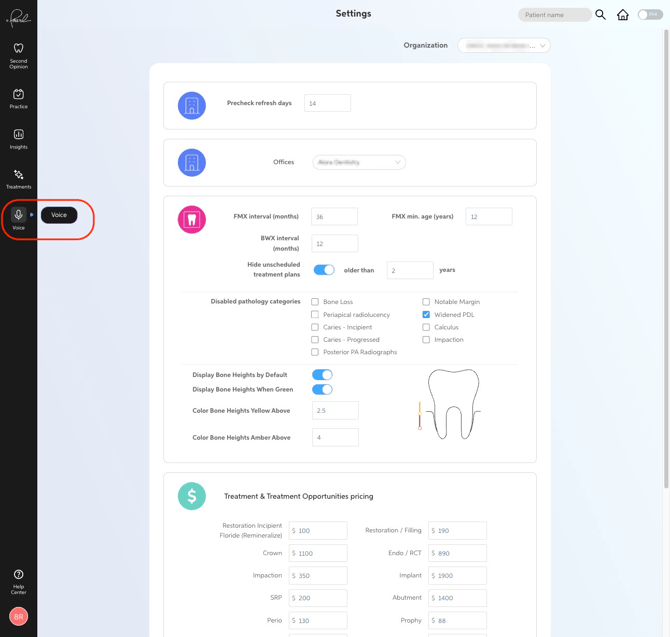
Step 2: Toggle between Pearl Voice practices
Use the dropdown menu to toggle between practices that have a Pearl Voice subscription.