What Customized Notes are used for
- Standard clinical statements you include frequently
- Preferred materials (bonding agent, composite brand, cement type, etc.)
- Boilerplate language (e.g., consent/risk statements)
- Default post-op instructions you routinely give
What not to use Customized Notes for
- Patient-specific findings or measurements (these should come from the live transcript)
- Procedure details that vary case-by-case
How to set up
Customized
Notes
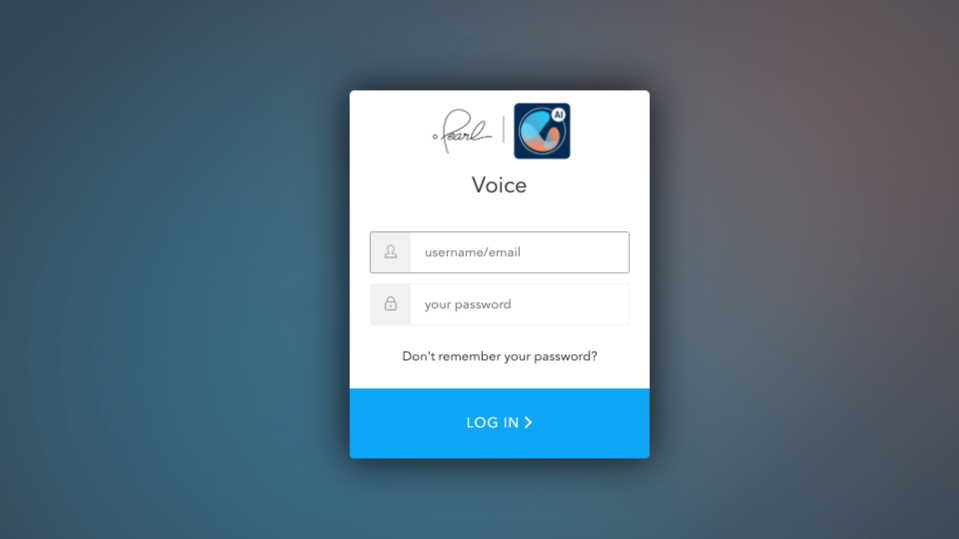
Step 1: Navigate to voice.hellopearl.com in your web browser.
Step 2: Log in using your Pearl credentials.
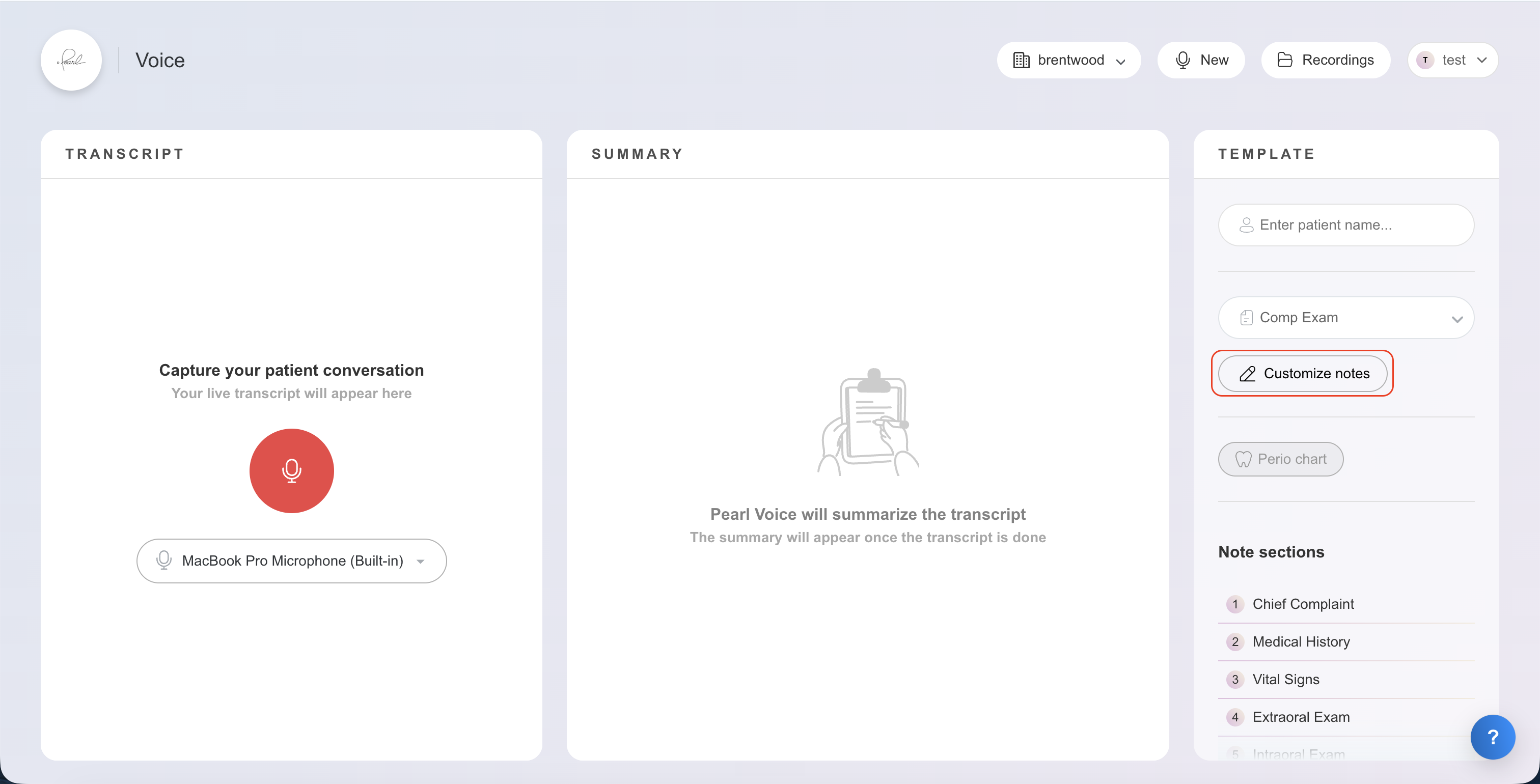
Step 3: Go to Customize Notes. The first step is to set up your provider.
Step 4: Type in the provider’s name to add them. If the provider already exists, select them from the list.
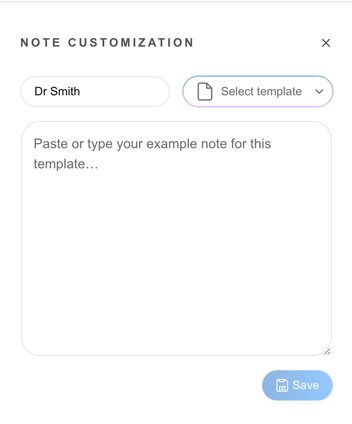
Step 5: Once you select your provider, choose the template you want to customize. This brings your existing note templates and language into Pearl Voice.
Step 6: Mirror the structure and wording your practice already uses. Pearl Voice uses your customized note input as the foundation for each generated note, then fills in appointment-specific details on top. See: How To Write a Good Customized Note
Step 7: For a comprehensive exam, include standards like medical history reviewed, head and neck exam completed, and routine findings. Pearl Voice will pull these into every relevant note—no need to repeat them out loud each time.
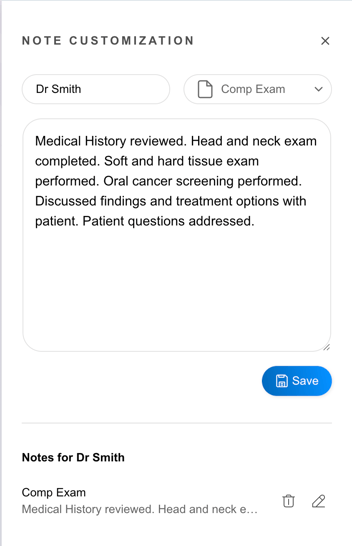
Step 8: For procedure templates like fillings, enter your standard materials and protocol once. Every filling note will include your chosen details, plus unique information from each appointment, such as tooth number or surface.
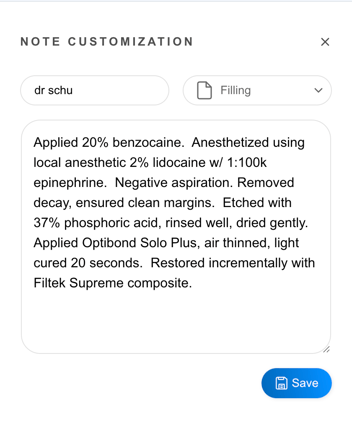
Step 9: Repeat this process for all templates you use regularly.
Tip: If each provider has different note preferences, set up example notes for each provider.
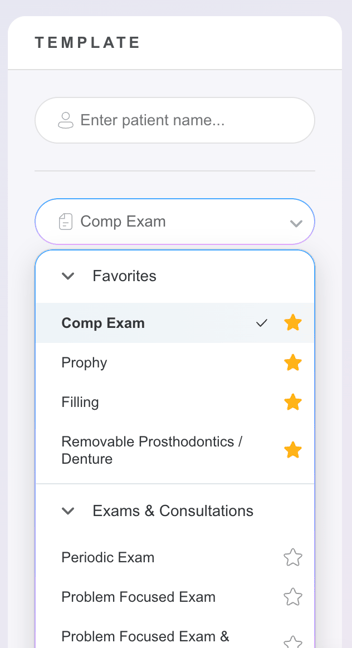
Step 10: Once your customized notes are set, star favorite templates so they always appear at the top for quick access.
Once your custom notes are set up, you’re ready to see Pearl Voice in action during your appointments. With fully customized templates, every provider can create consistent, comprehensive documentation without extra effort. Enjoy streamlined, accurate notes tailored to how your team already works.