How It Works
To delete images:
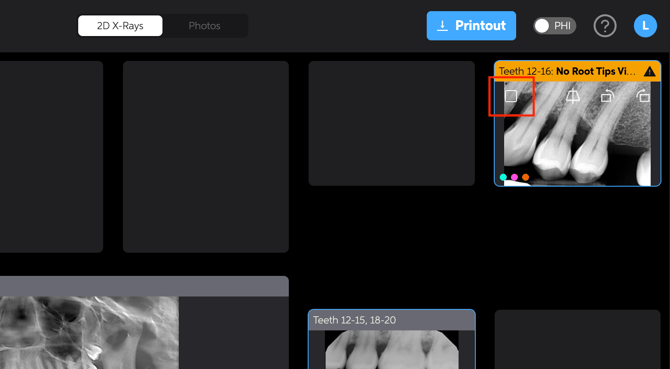
- Hover over the image you'd like to delete
- A checkbox will appear on the image
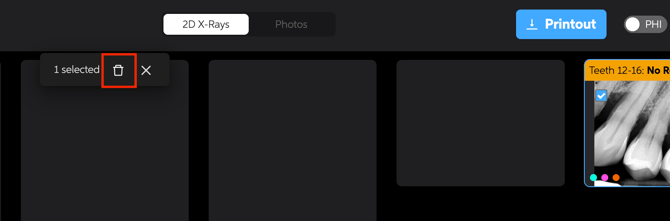
- Click the checkbox on the image(s) you want to remove
- In the newly appeared menu, click the trash icon
- Confirm the delete
- The selected images will be permanently deleted
- Deleted images can't be restored. Re-saving or moving them in your imaging software won't bring them back. If you deleted an image by mistake, contact support. If the image is only on the wrong patient, move it instead (see How to Move Images to another patient).

A patient doesn't want AI used on their X-rays: images saved in your connected imaging software are analyzed automatically, and you can't turn AI off for one patient. Pearl can remove a patient's images on request. Submit a support request with the patient's PMS ID only.