
-
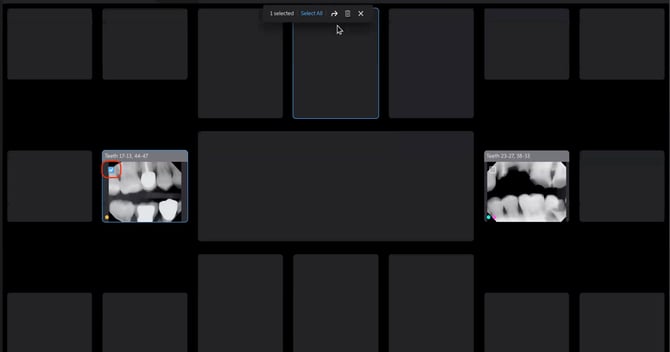
From the FMX view, hover over the image(s) and select the imag(s) you'd like to transfer.
-
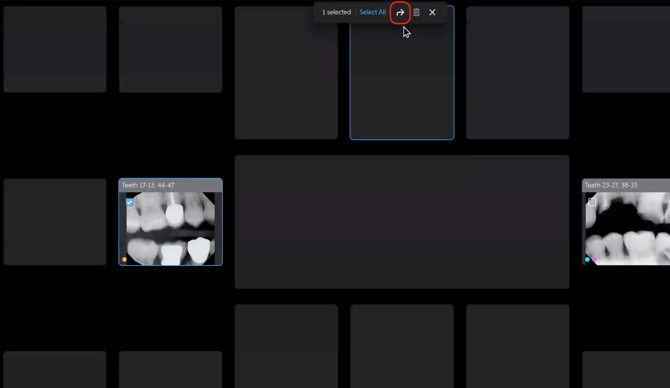
Select the arrow transfer icon.
-
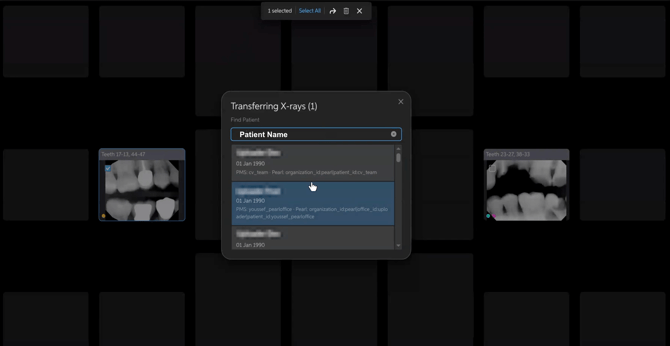
Insert the patient's name you'd like to transfer the images to and select.
-
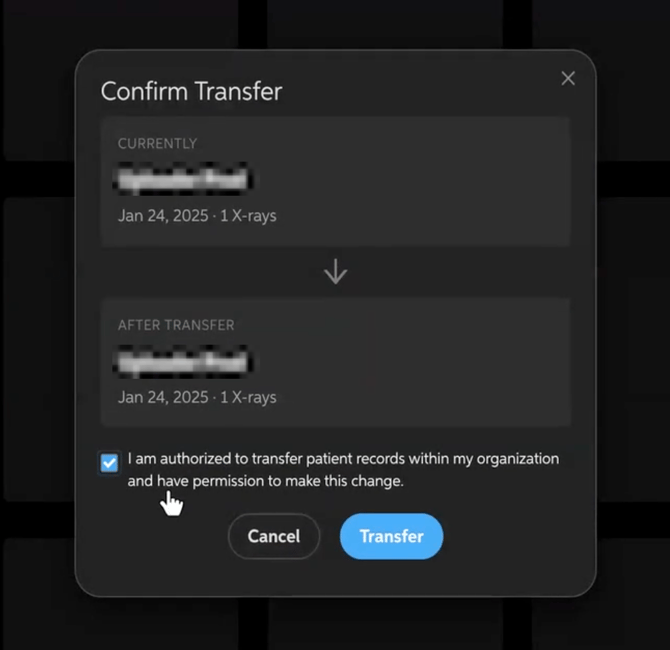
Confirm the transfer.
-
Once confirmed, the selected images will be moved to the patient requested.
Note: To move images to another patient in Second Opinion, both patients must exist in Second Opinion. If the patient you wish you transfer images to is not yet in Second Opinion, please take 1 image first in their chart, then move the desired images.