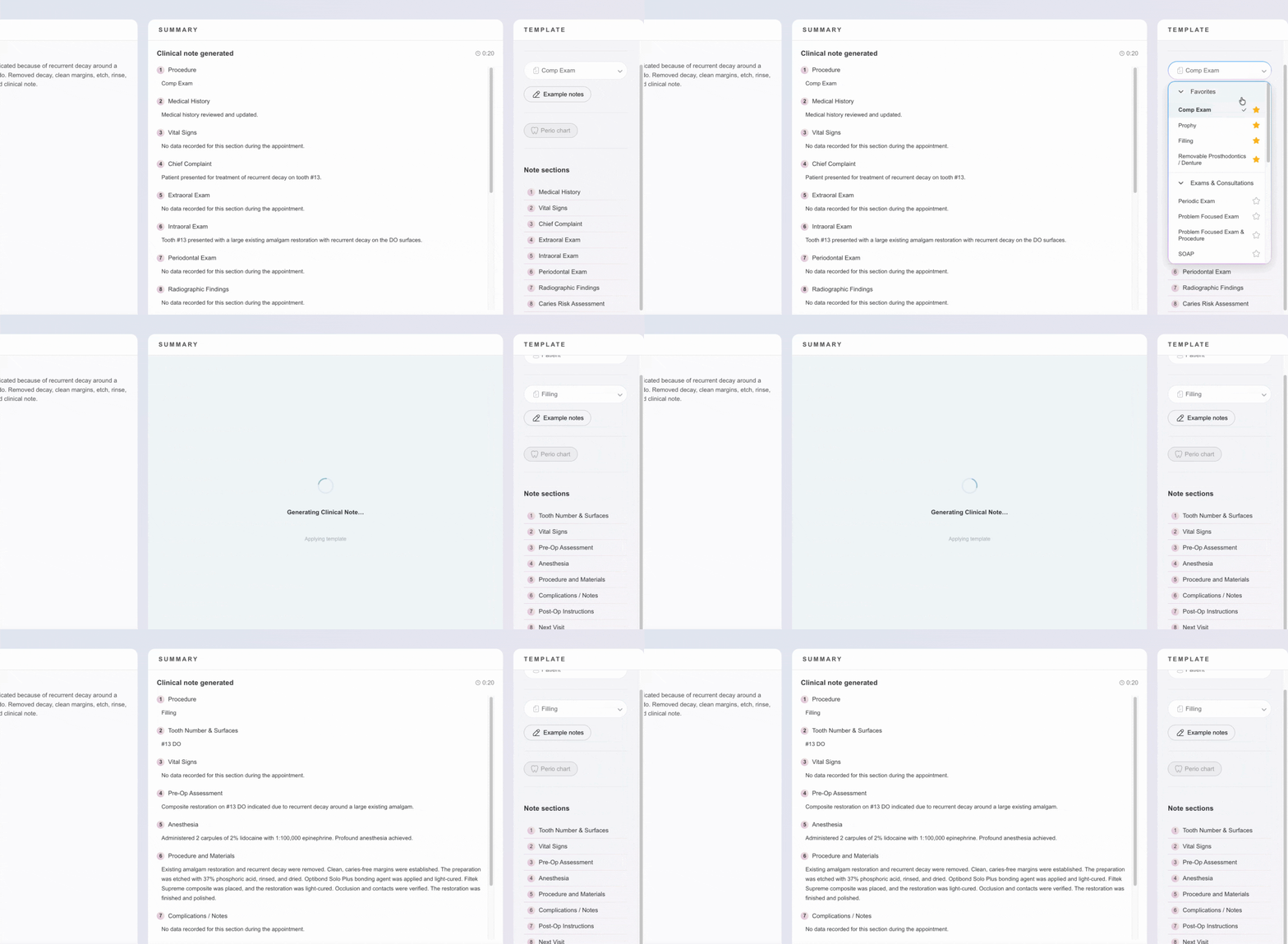
Switching templates after recording
Saving a note
Notes automatically save in Pearl Voice after generating and editing.
Saving to your PMS
Available for Carestack, Curve, Denticon, Dentrix, Eaglesoft and Open Dental.
After Pearl Voice generates your note, review it inline. When you're ready:
- Make any edits to the note
- Click Save Notes to PMS buttons to save the note into your PMS.
-png.png?width=670&height=685&name=Screenshot%202026-07-24%20at%2010-22-06%E2%80%AFAM%20(2)-png.png)
- Perio charts are saved in the perio chart view and will save to the perio chart module within your PMS.
-png.png?width=670&height=455&name=Screenshot%202026-07-24%20at%2010-30-22%E2%80%AFAM%20(2)-png.png)
Dentrix: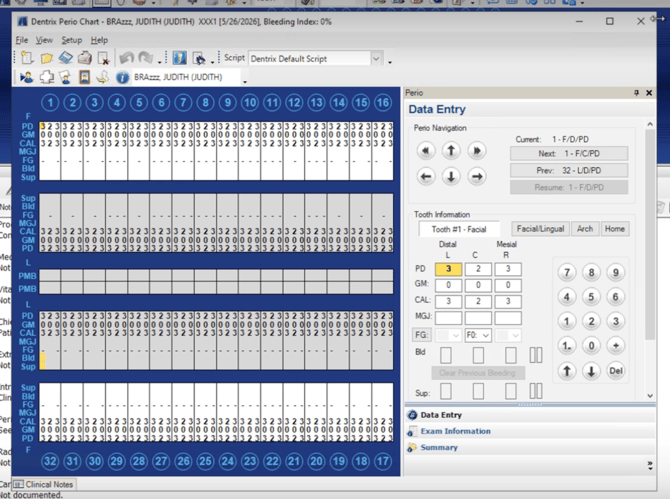
Eaglesoft: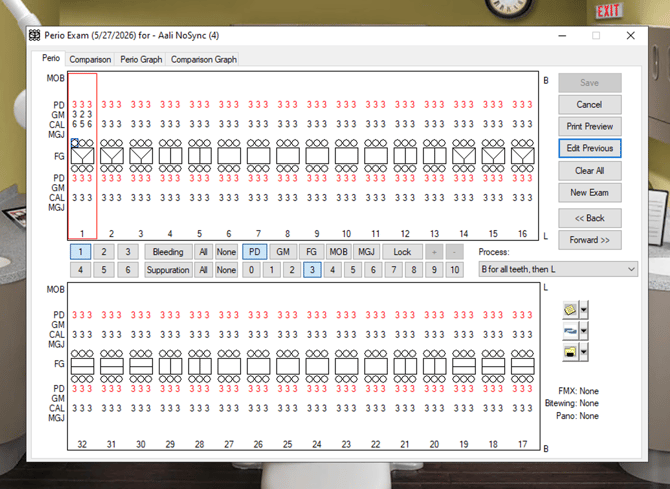
Open Dental: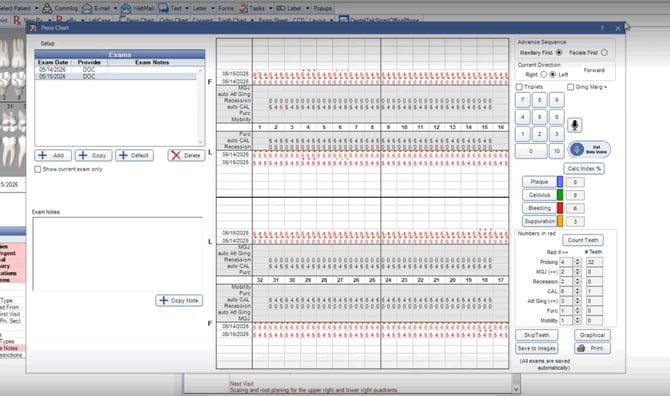
- Clinical Notes will generate to the following:
Dentrix: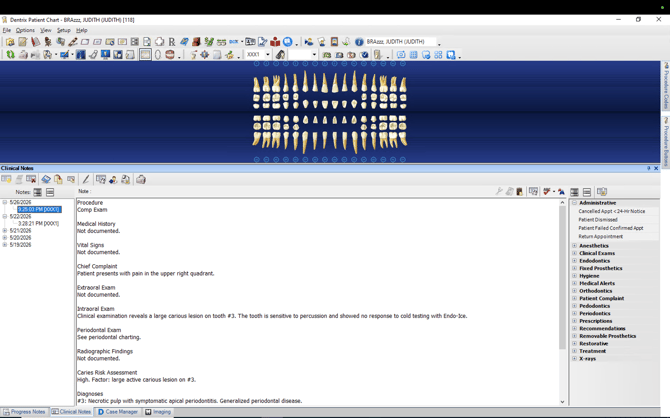
Eaglesoft: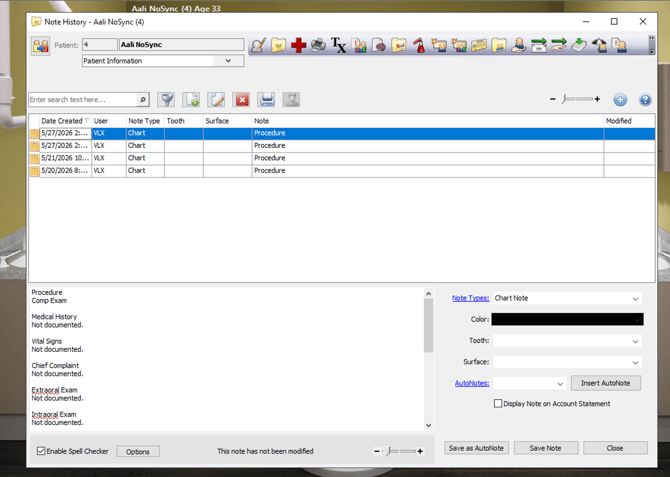
Open Dental:
Pearl selects the best matching code when writing back to OD and offers alternates. Attaches to existing codes or creates and attaches if not present.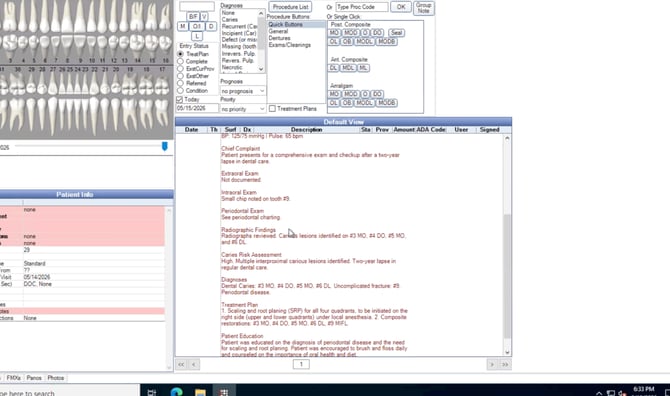
Compressed vs. full notes
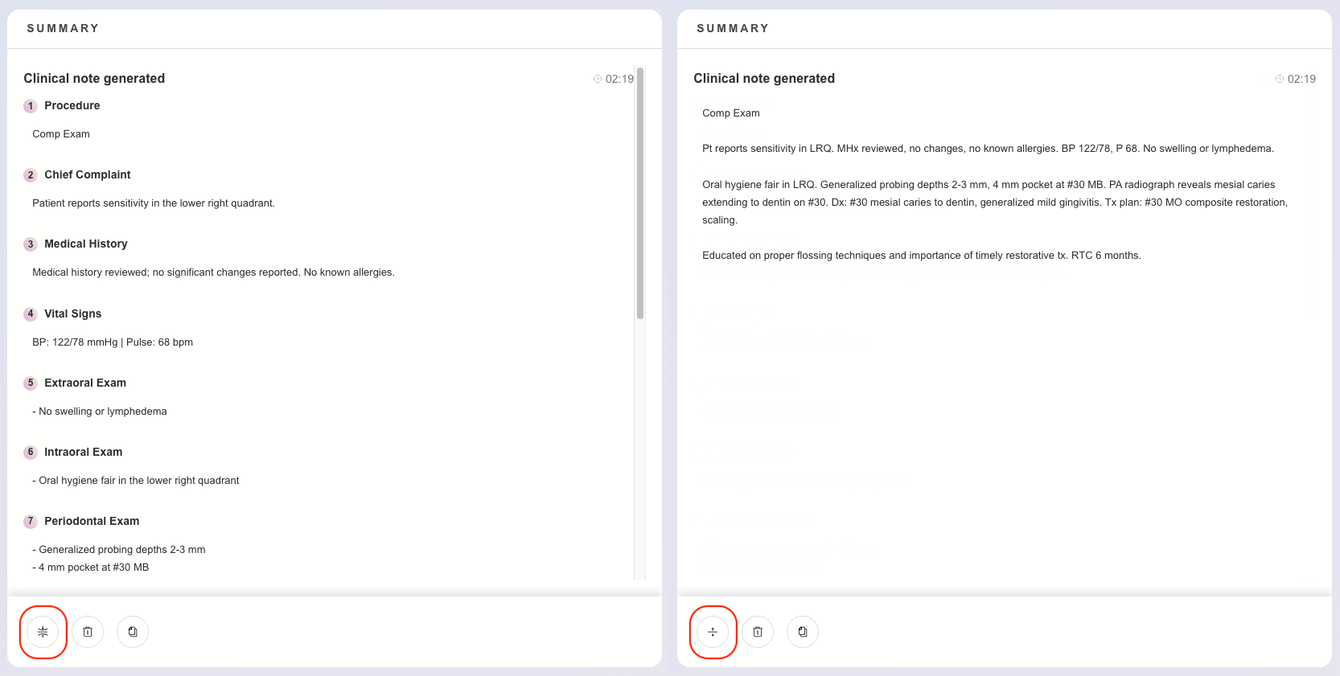
Pearl Voice generates two views of every note:
- Full note: The complete, detailed clinical documentation
- Compressed note: A concise summary version
Accessing previous recordings
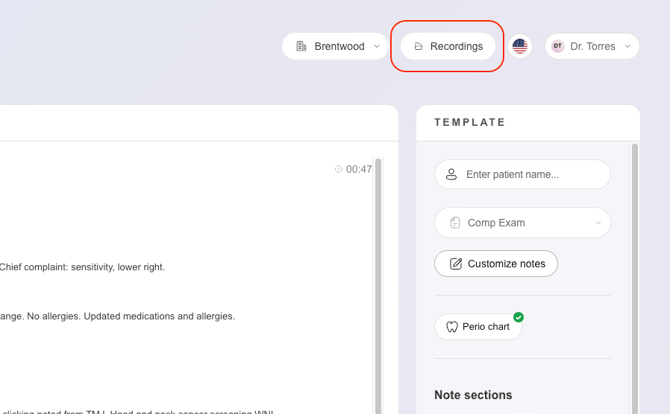
Click the Recordings dropdown or navigate to your recordings list to view past appointments. Recordings are listed by patient name and date.
Editing a saved note
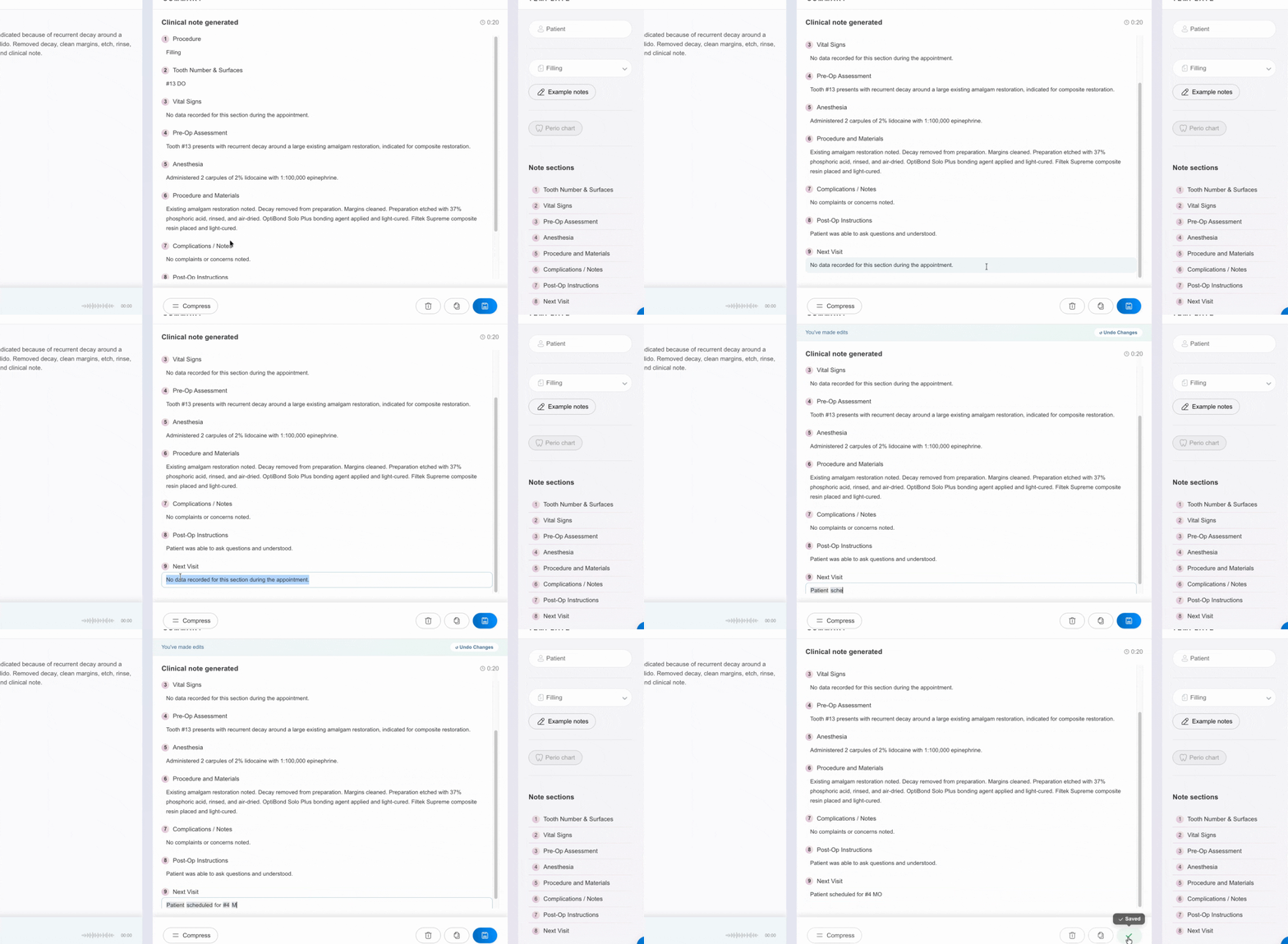
You can return to a saved note and edit it at any time. Open the recording from your list and click into the note to make changes.
Deleting notes and recordings
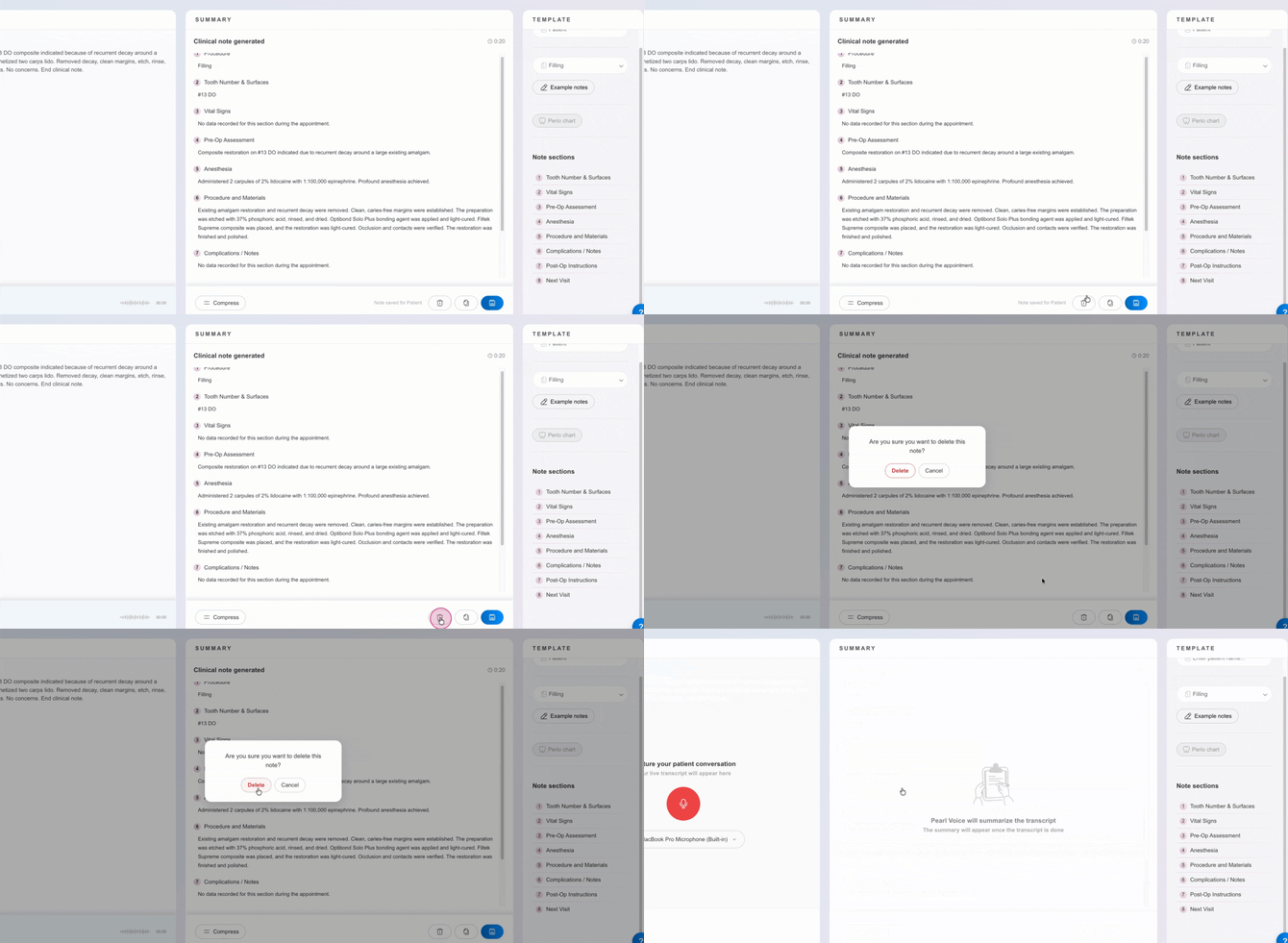
To delete an individual note or recording, open it and use the delete option.
Switching templates after recording
If you recorded under the wrong template, you can switch to the correct template after the recording is complete. Pearl Voice will reprocess the transcript using the new template. The original recording is not lost.