
Which Pathologies Are Detected
As of this writing, Second Opinion 3D detects: temporomandibular joint disorder (TMD), carotid artery calcification, impactions, periapical radiolucencies, and sinus radiopacity.
How It Works
- Open a CBCT scan. The AI Viewer panel appears on the side of the screen, with a toggle at the top to turn it on or off.
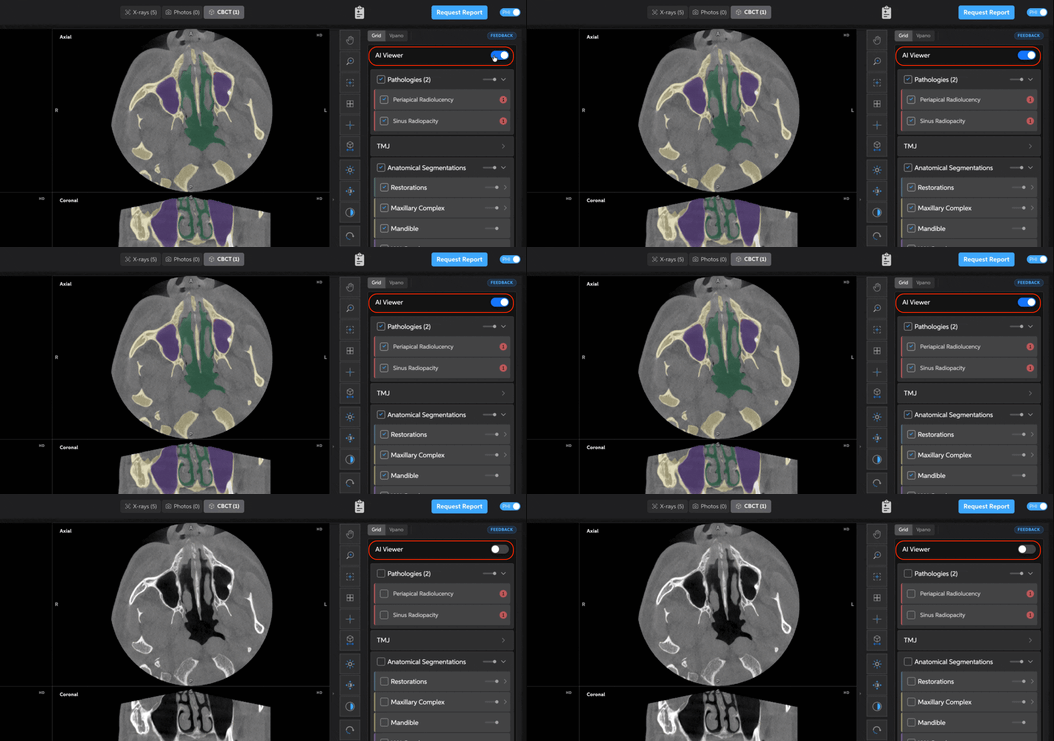
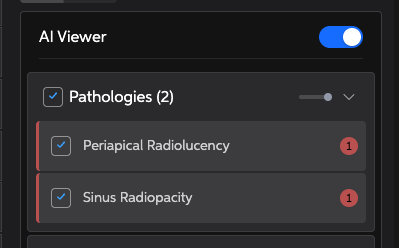
- The Pathologies section lists each detected finding — for example, Sinus Radiopacity or Periapical Radiolucency — with its own checkbox and a count badge showing how many were found.
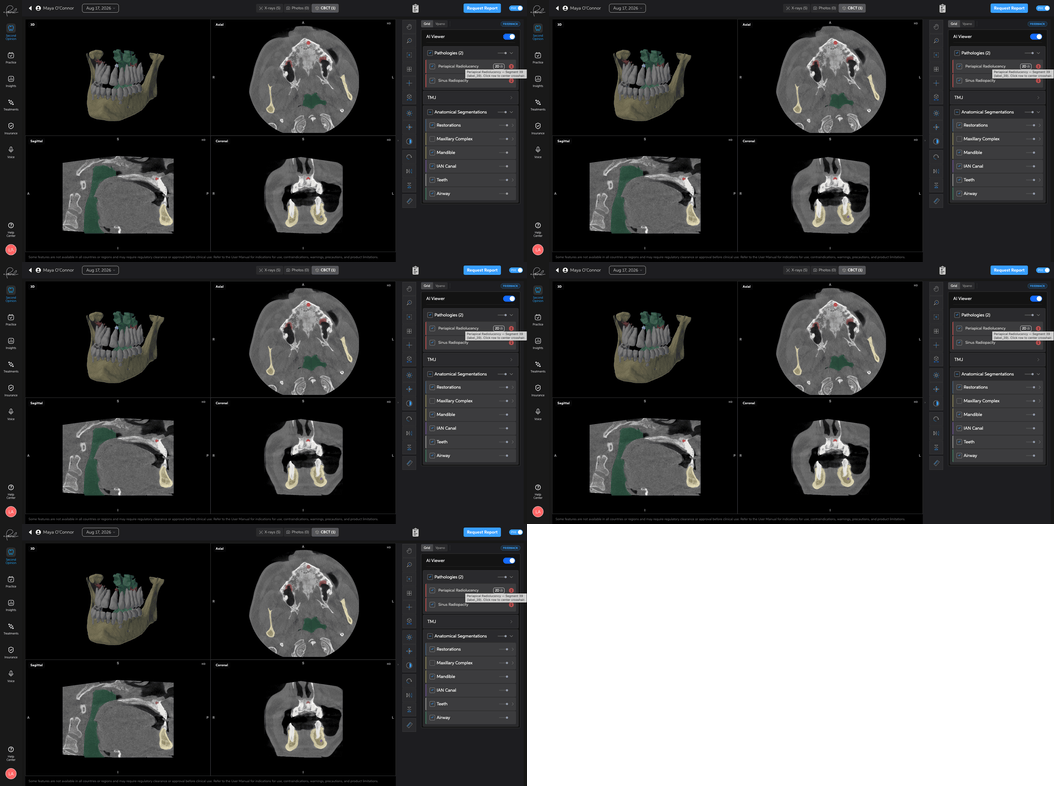
- Click a finding in the list. The viewer isolates it immediately across the Axial, Sagittal, Coronal, and 3D views at once.
- Check another finding in the list to jump straight to it the same way.
Anatomical Segmentation
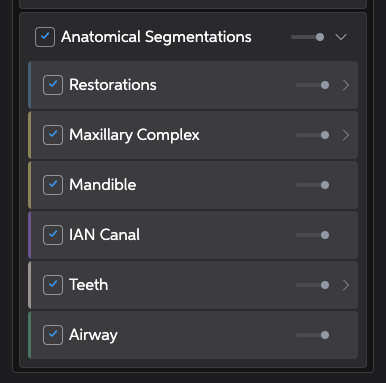
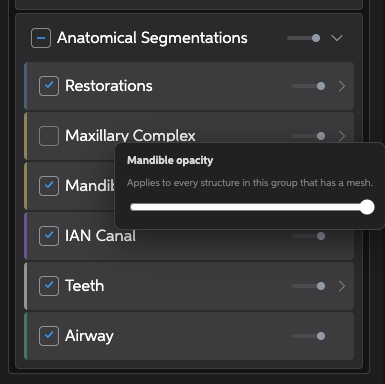
Below Pathologies, the Anatomical Segmentation section lists normal anatomy the AI has identified: Restorations, the Maxillary Complex (maxilla, nasal space, sinus), the Mandible, the inferior alveolar nerve canal, individual Teeth 1–32, and the Airway. Each item has its own toggle and its own opacity slider.
Visualizing a Finding for a Patient
- Hover over a finding and it blinks — a clear visual cue to point to while you explain what you're seeing.
- Toggle off structures that are in the way (like the maxilla or mandible) in Anatomical Segmentation to get a clearer line of sight — similar to looking through the walls of a house at the plumbing underneath.
- Use each structure's opacity slider instead of hiding it completely — for example, fade teeth out to reveal the pulp spaces underneath, without losing your overall orientation in the scan.
- Rotate the 3D view while a finding is selected to show it from multiple angles.
Best Practices
- Review the full Pathologies list before a patient consult, even if you're primarily focused on one area — the AI may surface something elsewhere worth a second look.
- Use color and motion (blinking, rotation) rather than verbal description alone when explaining a finding to a patient; it tends to land better.
Important Notes
Second Opinion 3D is an assistive tool, not a diagnostic device. AI-detected findings are a starting point for your own clinical review — always verify each finding yourself before making a diagnostic or treatment decision.