
Pearl is transitioning to a new version of the Pearl Agent. The current agent will be retired soon, and upgrading is required to ensure your data continues to sync properly and your Practice Intelligence remains active without interruption.
- This update takes only a few minutes and can be done at any time.
- No downtime: Installing the update will not interrupt your system.
This update must be installed on your local server, specifically the same server where the current Pearl Agent is already installed. If installed on a regular office computer/workstation, it will not work.
What you may need
During installation, you may be asked for your Dentrix credentials (username + password).
Please have them ready before you begin.
Optional (recommended) Server Verification
If you want to confirm you’re on the correct server before starting:
- Press Windows key + R
- Type services.msc
- Click OK
- Look for these services:
- tx247syncer
- tx247updater
If these services are present, you’re on the correct server.
Step-by-step instructions
- Open the installer (two ways)
-
Recommended: Run the installer from the server folder
- Log into your server.
- Open File Explorer.
- Go to this folder: C:\Program Files\Pearl\
- Find the file: Pearl_Agent_updater.exe
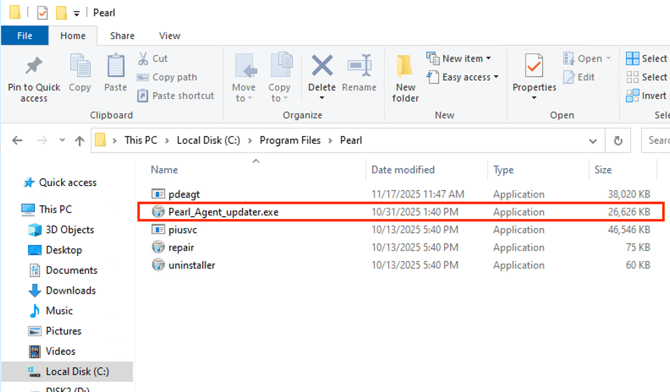
- Double-click to start the installation.
-
Download the updater from the Management Portal
If you don’t see the file in the folder above, you can download the installer from your Pearl Management Portal.
Note: multi-office organizations may see multiple offices in the portal.
Please ensure the correct office is selected to download the installer.
- On the server, open this link:
Management Portal Link - You will see your office list. Find the correct office, then click:
Manage Office - On the office page, look in the top-right area for:
Download Installer
- Click Download Installer and save the file.
- Once downloaded, open the installer and continue with the next steps below.
- On the server, open this link:
-
-
Start the installation
- When the installer opens, click Install.
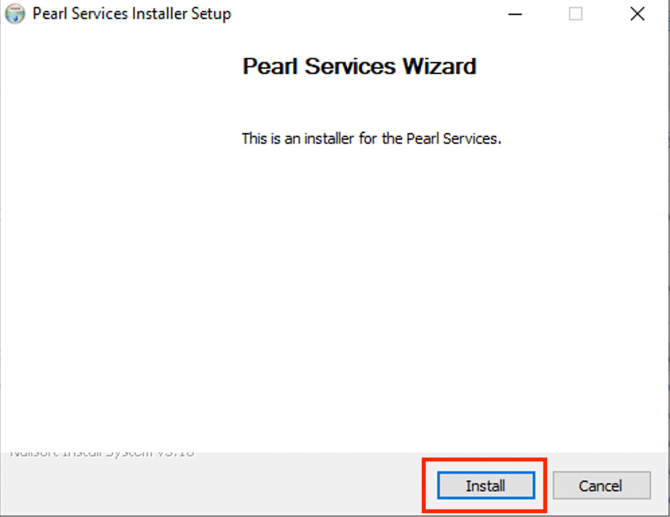
- When the installer opens, click Install.
-
Imaging Agent Prompt
-
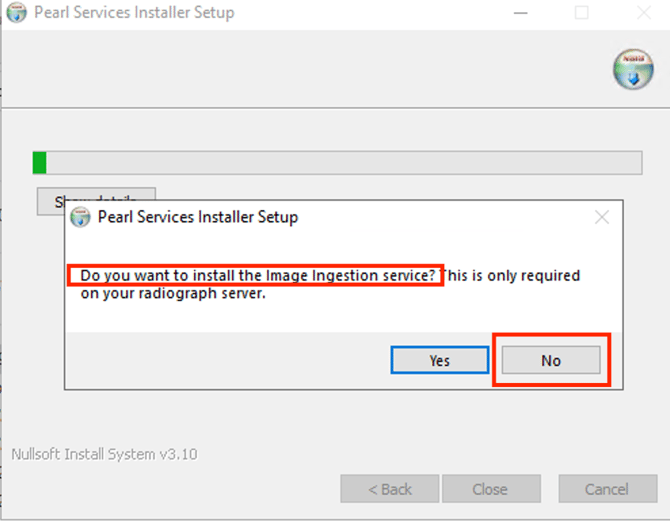
During the installation, you will see a prompt about updating the Imaging Agent.
-
Select NO
-
-
PMS Agent Services Prompt
- Next, you will see a prompt asking to install the PMS Agent services.
- Select YES
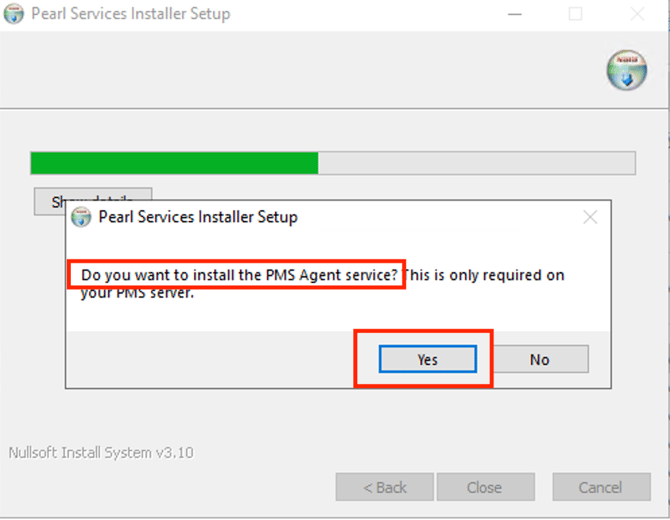
If you are prompted to reinstall the service, please select Yes again.
-
Enter your Dentrix credentials
-
After the PMS services install, you will be prompted to enter your Dentrix credentials to complete setup.
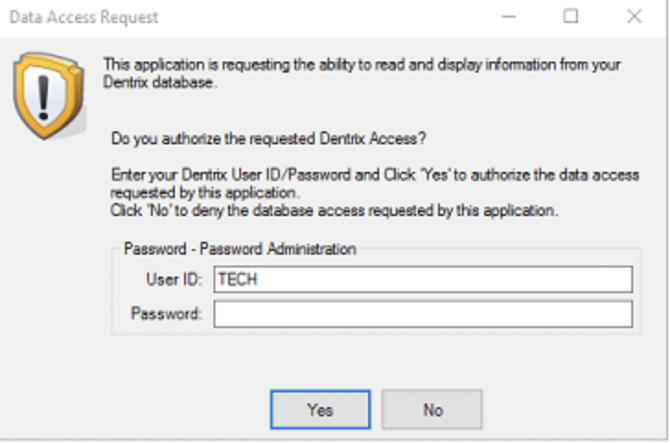
- Enter your Dentrix Username
- Enter your Dentrix Password
- Continue / Finish
- Enter your Dentrix Username
-
After the installation
- The update will take effect automatically.
- Your data will continue syncing normally.
- Practice Intelligence will remain active without interruption.
Need help?
If you have any doubts, can’t find the installer, aren’t sure which office to select, or the prompts look different on your screen, please contact Pearl Support and we’ll help you.
Click Here To Create A Support Ticket
If your IT provider manages your server, you can forward them this page and ask them to complete the steps on the server.