
Overview
Once you're comfortable with the Grid view and AI-detected findings, these additional tools help you look closer, generate alternate views, and adjust how a scan is displayed.
View Modes
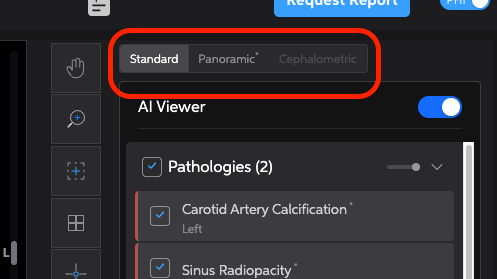
- Standard — four synced views (3D, Axial, Sagittal, Coronal). This is the default and what most people use most.
- Penoramic — flattens the CBCT into a familiar panoramic-style image, useful for a quick pano view without a separate capture.
* This feature is currently cleared in Canada, awaiting approval in other countries.
Switch between them using the three tabs above the AI Viewer panel.
Toolbar Tools
|
Tool |
What It Does |
|
Cursor / Zoom / Reset |
Basic navigation controls |
|
Crosshair tilt |
Adjusts the angle of the reference lines synced across all four views |
|
Opacity |
Fades a structure in or out without fully hiding it |
|
Brightness / Contrast |
Adjusts image display |
|
Inverse lighting |
Inverts the light/dark display of the scan |
|
Rotate |
Rotates the 3D model |
|
Flip horizontal/vertical |
Mirrors the current view |
|
Measurement (ruler) |
Takes a precise manual measurement anywhere on the scan* |
*Measurements are not FDA cleared at the time of this writing and should not be used for diagnostic purposes.
Additional Keyboard Shortcuts
|
Command |
What It Does |
|
cmd/ctrl + Left Mouse Drag |
Rotate 3D view |
|
Shift + Left Mouse Drag |
Translate/pan 3D view |
|
cmd/ctrl + Mouse Wheel |
Zooms 2D in/out |
|
Space |
Toggles AI overlay off/on |
|
C |
Toggles Crosshairs |